For school & nursery photographers · Windows 10 and 11
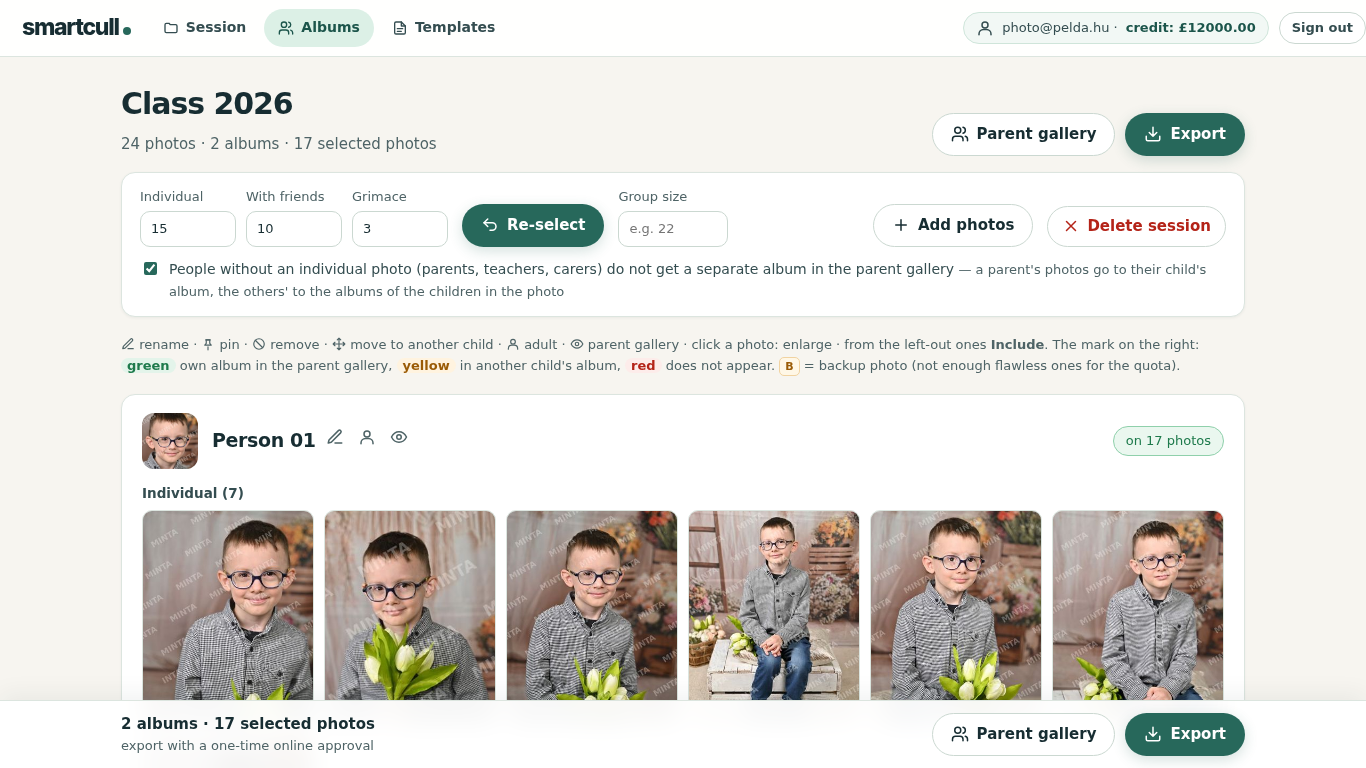
SmartCull for Windows sorts nursery and school sessions by child, flags blinks, blur and near-identical frames, and suggests the best shots. The processing happens on your own computer.
You review the result, then export the selection into per-child folders. If you want a parent ordering gallery, you upload the selected photos to your account as a separate decision.
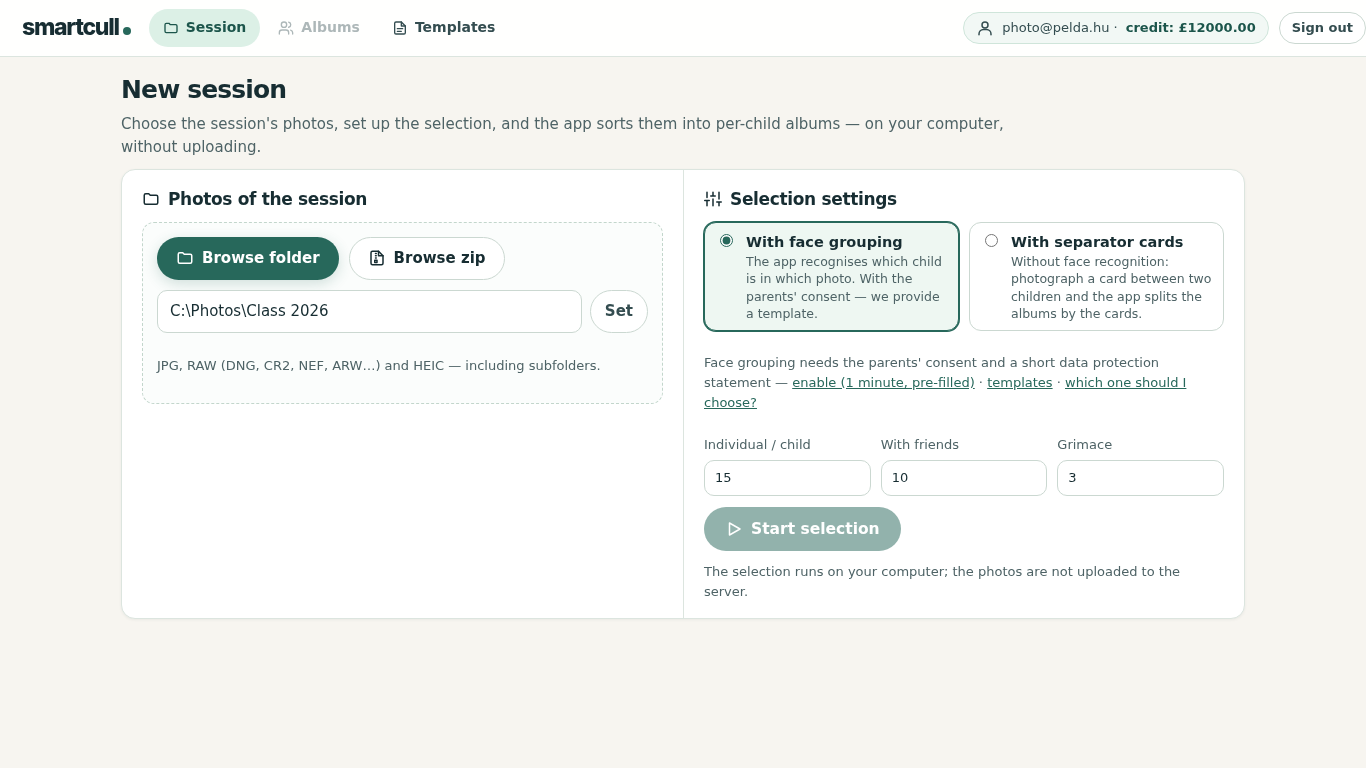
Work with the photos of a whole nursery or school shoot without waiting for an upload. Processing speed depends on your PC and the files.
Culling needs no constant connection. Signing in, approving an export and uploading a parent gallery do.
During local culling the originals are never sent to our server — they stay where they are.
Photos are uploaded only by a separate action: if you start the parent gallery upload, the selected photos and the gallery data reach the server — from then on the rules of the web service apply.
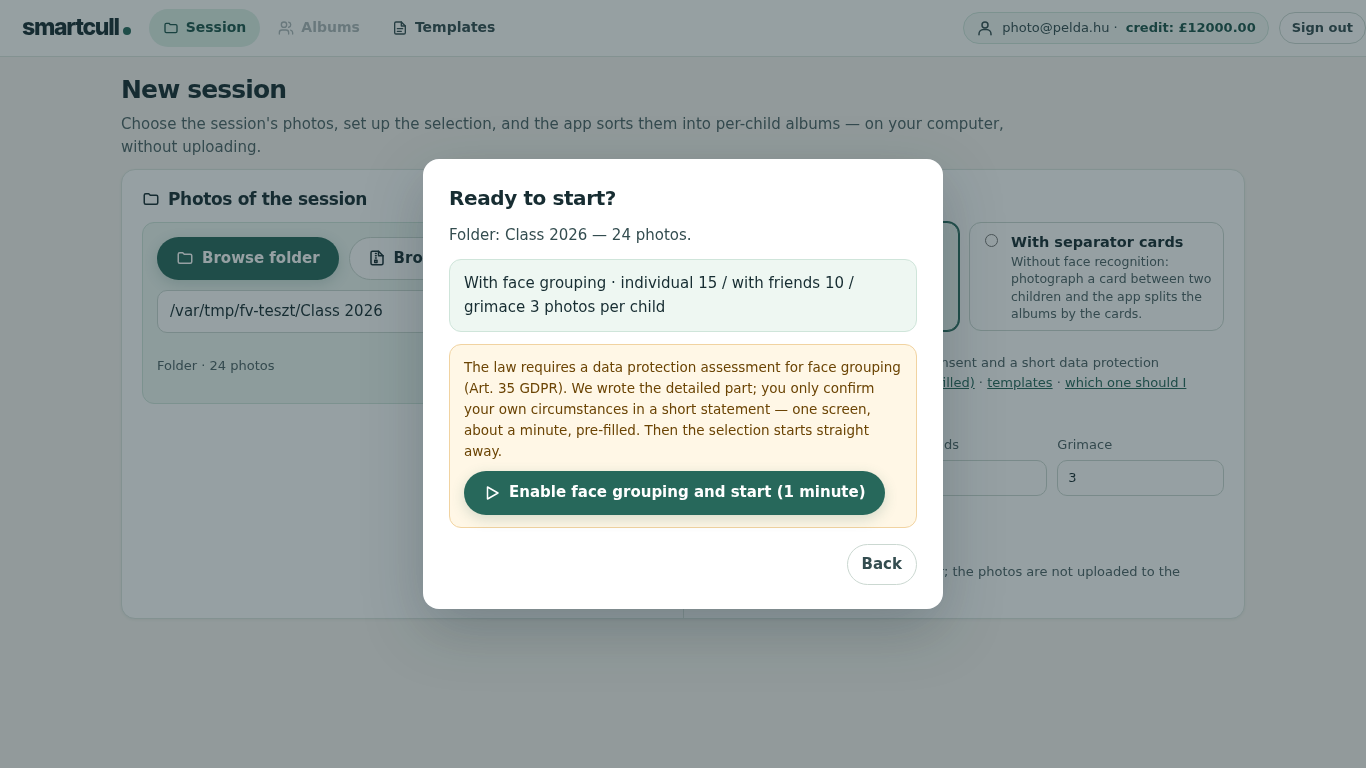
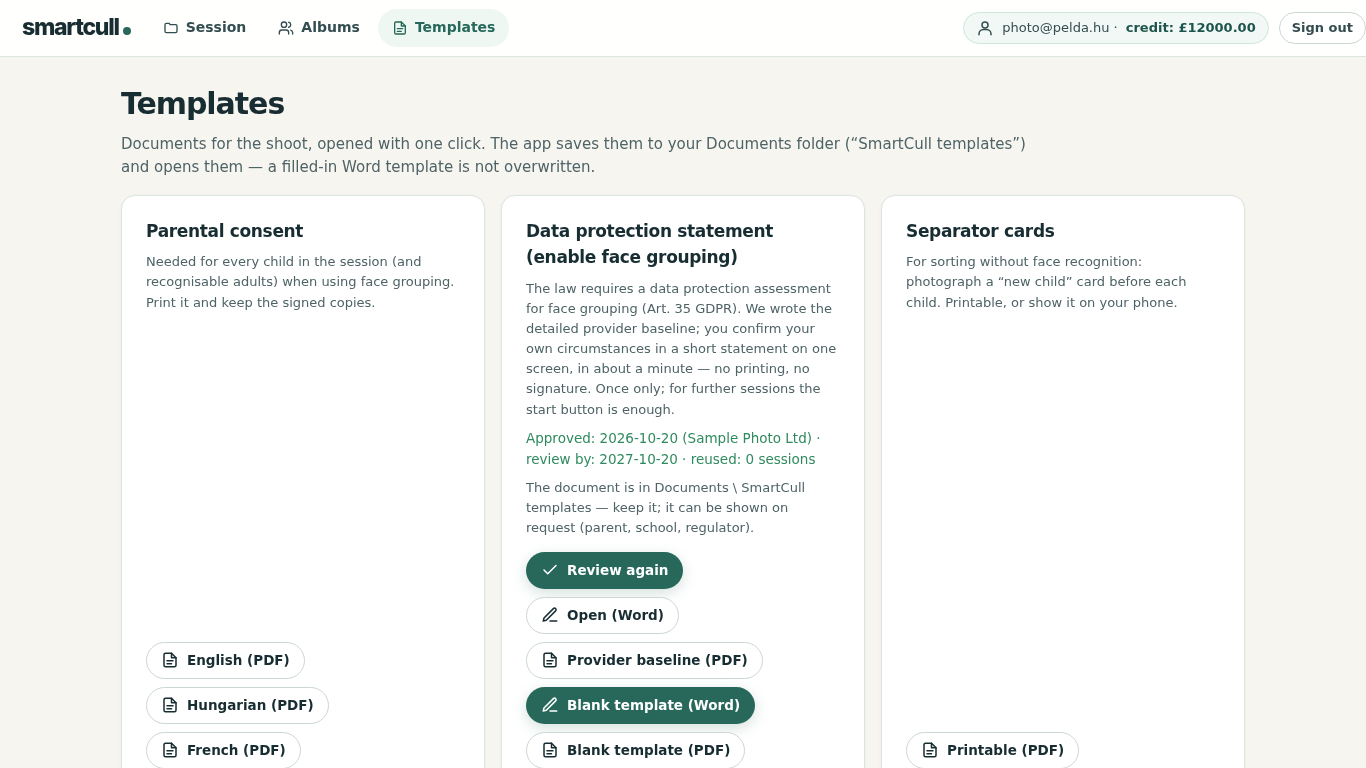
The app puts the photos of the same child into one album. This needs the parents’ consent — the app provides a template — and before first use you complete a short data protection statement in the app, built on the provider baseline, which stays on your PC. The templates help, but they do not replace your own decision.
You photograph a marker card between children; the app splits the session into albums by the cards, without face recognition. The general rules on handling and sharing photos still apply.
No face recognition or separator cards. Groups photos using clothing, hair appearance and shooting order. Less reliable when children look alike; check the albums.
You install the app for free and cull and review locally at no charge. When you export or upload a parent gallery, the app checks your account’s package and shows the fee in advance — nothing is deducted without your approval:
The same session can be re-exported later on the same PC free of charge; if you add photos to a finished session, you pay only for the new ones. Packages in detail →
| Windows app | Web version | |
|---|---|---|
| Where processing happens | on your own PC | on our server |
| Upload | not needed — only for the parent gallery, as a separate decision | you upload the whole session |
| Internet | to sign in and approve an export | throughout |
| Input | folder or zip; JPG, RAW, HEIC | zip; JPG, RAW, HEIC |
| Result | per-child folders on your PC | ZIP download |
| Parent gallery | upload the selected photos from the app with one click | from the processed session, with one click |
| Install | Microsoft Store (Windows 10/11, 64-bit) | none — browser |
With both, you review the selection yourself, with the same account and credit.
Culling itself runs without it. Signing in and approving an export need the internet. An approved, unchanged session can be re-exported offline on the same PC.
Currently on up to three registered computers per account. You manage the computers in your account.
JPG, RAW (DNG, CR2, NEF, ARW and the common manufacturer formats) and HEIC — from a folder or a zip, subfolders included. If a photo exists as both RAW and JPG, the app uses the JPG.
Not for local culling. Photos reach the server only if you start the parent gallery upload yourself — and then only the selected ones.
Check that you installed from the app’s official Microsoft Store page and that the publisher details match. If you get an unexpected warning, write to us (hello@smartcull.uk) — do not simply dismiss it.
No. Local culling and export happen in the app; the parents’ ordering gallery still lives on the website — you upload the selected photos there from the app with one click.
Install SmartCull for Windows and work with your usual photo files, locally. You review the selection, and you know any export fee before you approve.
